Convert an image to a drawing online (free tool), then animate it with AI
Free photo to drawing converter: pencil sketch, line art or coloring page, right in your browser. Plus free AI tools that animate a photo, and prompts to try.

On this page 5 sections
To convert an image to a drawing online for free, use the converter below. Choose a photo, pick a style (pencil sketch, charcoal, colored pencil, line drawing or coloring page) and download your drawing as a PNG. It all happens in your browser: no sign-up, no watermark, and your photo is never uploaded.
Want the picture to move? Further down are the free AI tools that animate a photo (or the drawing you just made), plus prompts for when you’d rather have an AI redraw it in an art style.
Photo to drawing converter
Choose a photo, pick a style, then download your drawing. Free, no sign-up, and your photo never leaves your device.
What each style looks like
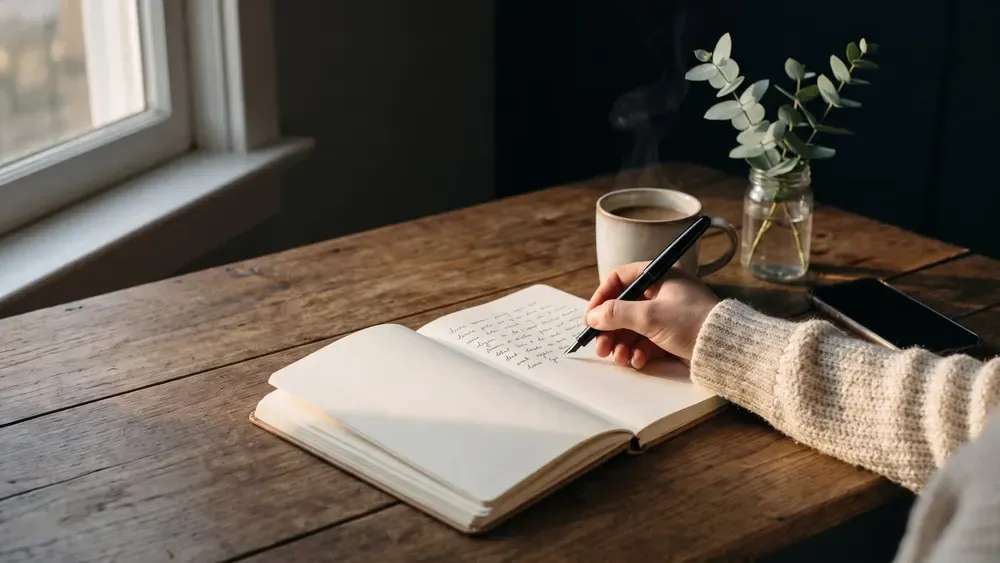
Here’s one photo run through all five styles, with the sliders left in the middle (Lines 5, Darkness 5, paper grain on). The photo is an AI-made image from our journal prompts article, and it’s the sample in the tool above, so you can try the same settings yourself.
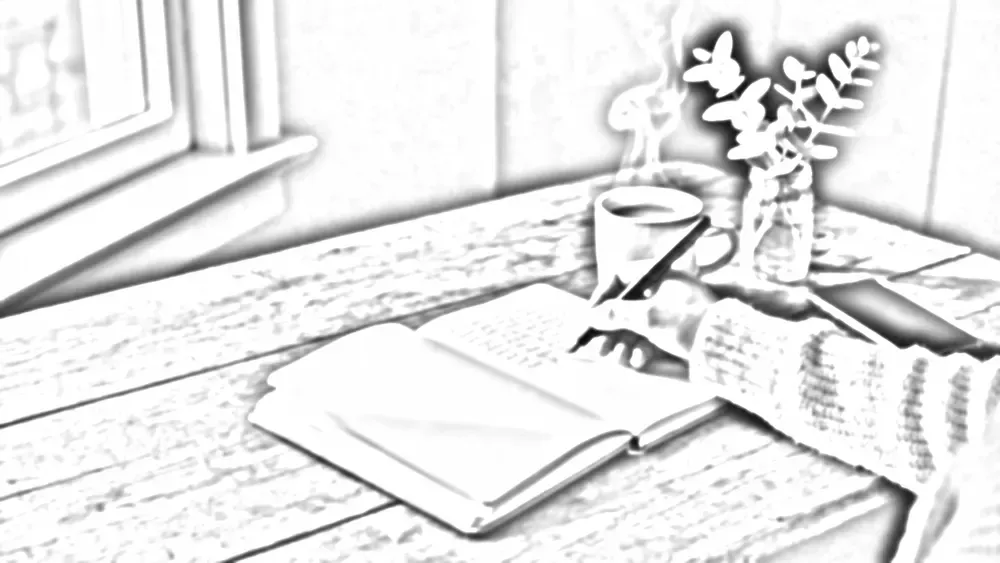
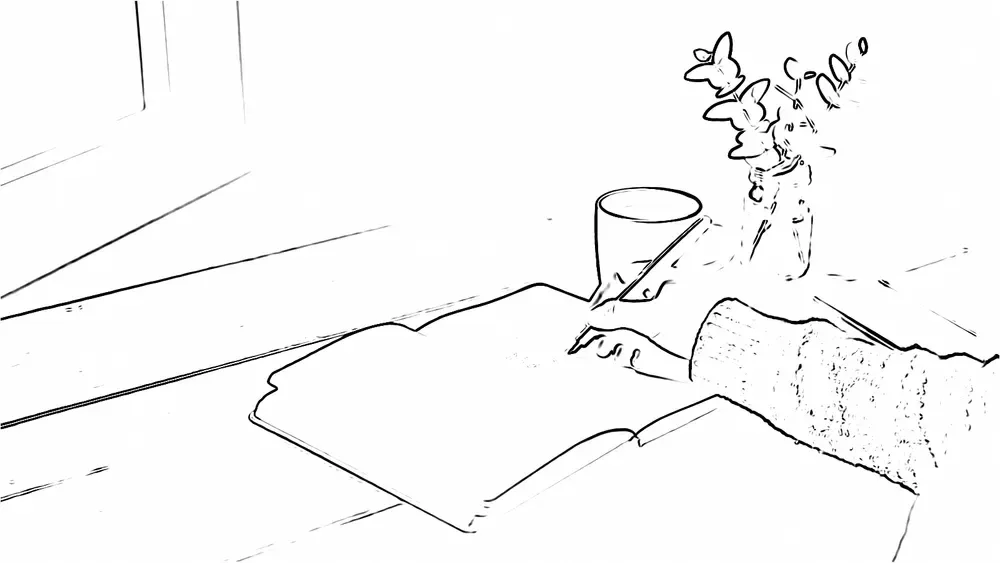
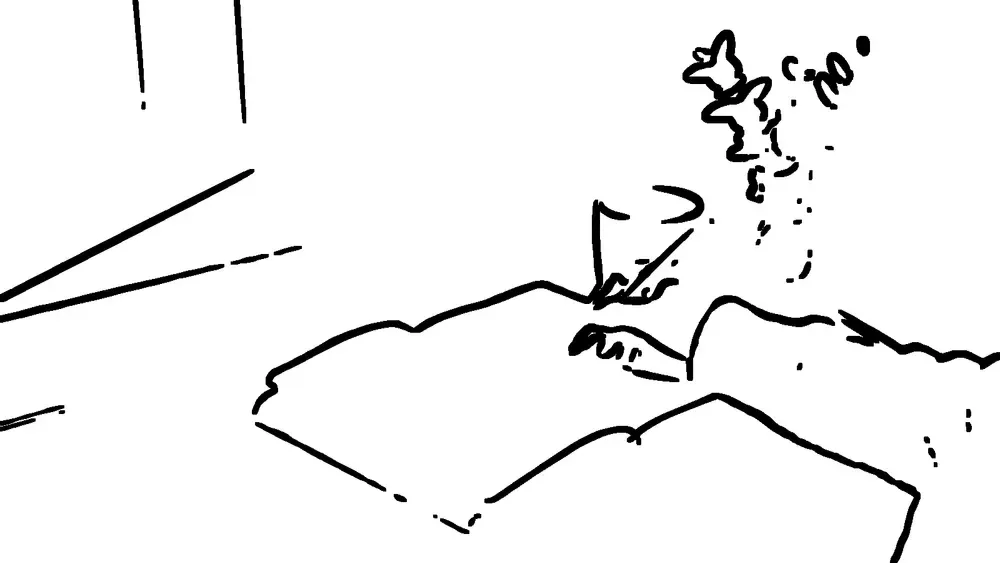
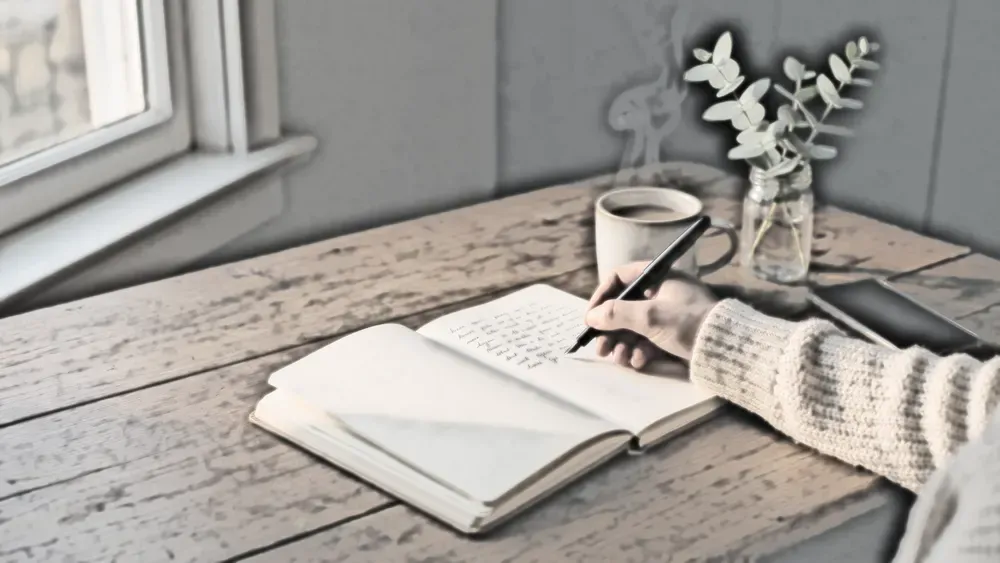
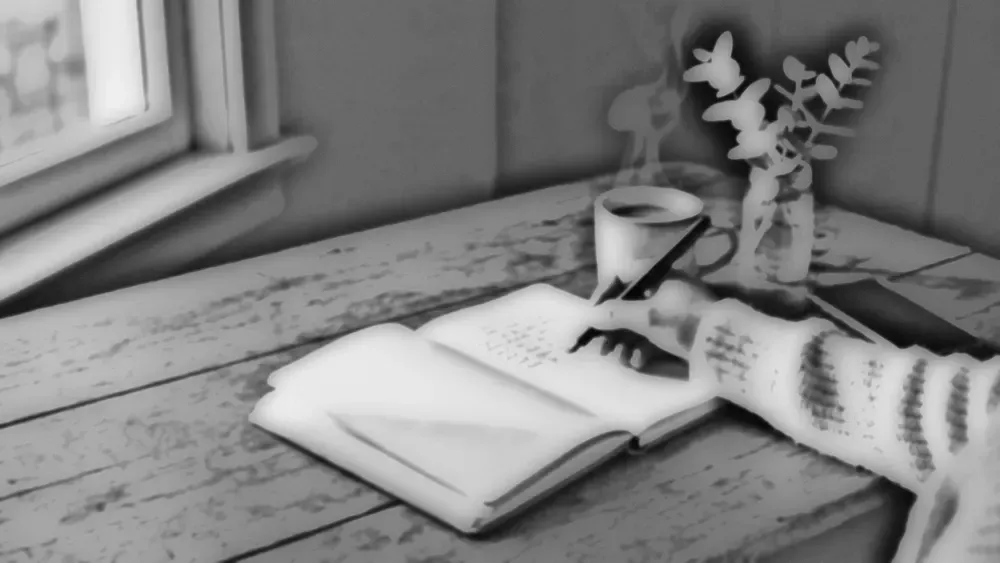
| Style | Good for | Tip |
|---|---|---|
| Pencil sketch | Gifts, profile pictures, a hand-drawn look | Raise Lines for bolder strokes |
| Charcoal | Moody, dramatic pictures | Keep Darkness low on photos that are already dark |
| Colored pencil | Keeping some of the photo’s color | Works best on bright photos |
| Line drawing | Tracing, outlines, embroidery or craft patterns | Lower Lines for fewer, cleaner lines |
| Coloring page | Printable coloring sheets for kids | Use photos with one big, simple subject |
Tips for photos that turn into good drawings
We ran the converter on a handful of our own photos while building it. These made the biggest difference:
- Use a bright, evenly lit photo. Very dark areas turn gray and blotchy in pencil and charcoal. That’s the one weak spot we kept seeing, and it’s common to this kind of sketch filter.
- Pick one clear subject on a plain background. A busy background turns into lots of extra lines, which is a pain on a coloring page.
- Crop first. Cut the photo close to what you want drawn before you add it.
- For faces, start with pencil sketch. Line drawing can look harsh on skin, and pencil keeps the soft shading.
- Size: big photos are scaled to 1,600 pixels on the long side. That’s plenty for a screen or a small print, such as a card.
If you want ideas for what to draw by hand instead, try our drawing prompt generator.
This converter or AI: which should you use?
Use the converter when you want your real photo as a drawing. Use AI when you want a new picture in a particular art style. The converter traces the edges and shading that are already in your photo. An AI image tool looks at your photo and draws a new one.
| This converter | AI (ChatGPT, Gemini) | |
|---|---|---|
| How it works | Traces your photo’s edges and shading | Redraws the picture from scratch |
| Faces and details | Stay exactly the same | Can change: a different face, an extra finger |
| Styles | 5 sketch styles | Any style you can describe |
| Privacy | The photo never leaves your device | The photo is sent to the company |
| Cost | Free, no limit | Free plans have a daily limit |
| Watermark | None | Gemini’s free-plan images show a small visible mark |
To use AI, upload your photo to ChatGPT or Gemini and paste one of these. Both free plans can edit an uploaded photo, with a daily limit. Our ChatGPT photo prompts post compares the two in more detail, and our free AI photo generator guide covers six more free image tools.
Turn this photo into a detailed graphite pencil sketch on white paper.
Keep the same layout, and keep every face exactly as it is.
Visible pencil strokes, light cross-hatching for shadows, no color.
Turn this photo into a black-and-white coloring page for kids.
Thick, closed outlines, no shading, no gray, plain white background.
Leave out small background details.Redraw this photo as a loose watercolor and ink illustration.
Keep the same layout and the same people. Soft colors, white paper showing through.Animate a photo (or your drawing) for free
The easiest free AI image animators are Google Photos and the Meta AI app. Both turn a still picture into a short video clip on their free plans. Gemini does it too, with more control, but only on a paid plan.
| Tool | Cost | How | Good to know |
|---|---|---|---|
| Google Photos (Photo to video) | Free, a limited number per day. A Google AI plan gives more. | Create → Photo to video → Add photo → pick an effect or type a prompt | Ages 13+, text prompts 18+. Personal Google accounts only, not school or work. Landscape photos get cropped to a portrait video. Videos may include sound. |
| Meta AI app | Free | Upload the image, type “Animate” and describe the motion, then send | Not available in every country. Meta says it uses your AI chats to improve its AI. |
| Gemini app | Needs a Google AI plan | Sidebar → Create video → add up to 5 images → describe the motion | 18+. The video keeps your image’s shape. Uses Google’s Gemini Omni video model. |
Plans and steps come from each company’s help pages, checked November 4, 2026.
Google Photos is the simplest place to start. It has two one-tap effects: “Subtle movements” adds gentle motion, such as waving or smiling, and “I’m feeling lucky” may add bigger movement or effects such as confetti. If you’re 18 or older, you can type your own prompt instead.
To animate a drawing you made above, save the PNG to your phone’s gallery first, then pick it in Google Photos or Meta AI like any photo. These tools are built for photos, so results with drawings vary from picture to picture.
A prompt that works well for any of the three:
Animate: steam rises slowly from the cup and the pen moves across the page.
The camera stays still. Calm, natural motion.
Describe one or two small movements and say the camera stays still. Long lists of actions in one short clip tend to look messy.
Bottom line
For a drawing of your real photo, use the free converter at the top of this page. It keeps every detail, runs in your browser and has no limits. For a new art style, ask ChatGPT or Gemini with one of the prompts above. To make it move, start with Google Photos’ free Photo to video or the Meta AI app, and use Gemini if you already pay for a Google AI plan.
Questions people ask
How do I convert an image to a drawing online for free?
Use the converter on this page. Choose a photo, pick pencil sketch, charcoal, colored pencil, line drawing or coloring page, then download the PNG. It runs in your browser, so nothing is uploaded, and there's no sign-up or watermark.
Is there a free AI image animator?
Yes. Google Photos has a free Photo to video tool with a daily limit, for personal Google accounts and ages 13 and up. The Meta AI app can also animate an uploaded image when you type "Animate" and describe the motion. The Gemini app makes videos from photos too, but it needs a paid Google AI plan.
Can I turn a photo into a coloring page?
Yes. Pick Coloring page in the converter above. It turns the edges in your photo into thick black outlines on white. Photos with one clear subject, a plain background and good light give the cleanest pages.
Does this converter use AI?
No. It uses image maths, edge detection and a classic pencil-sketch blend, on the pixels of your photo. That means it traces your real photo, so faces and shapes stay exactly as they are. AI tools redraw the picture instead, which allows any art style but can change details.
Is it safe to put my photo into these tools?
With the converter on this page, your photo never leaves your device. With AI apps, your photo goes to the company that runs them, and Meta says it uses your AI chats to improve its AI. Only animate photos you have the right to use, and ask people before you animate their photo.